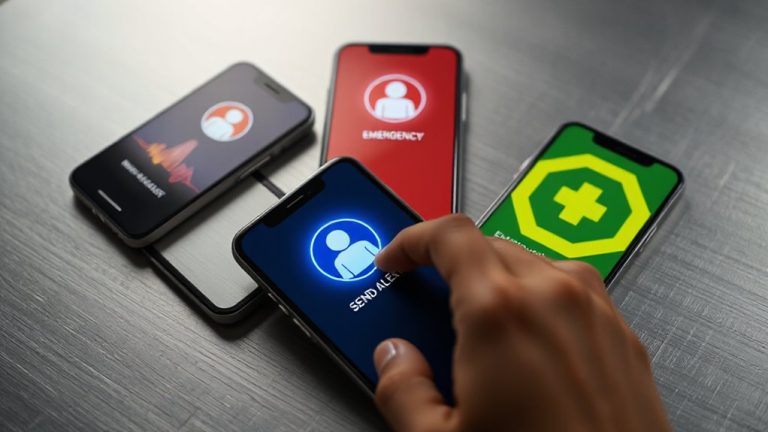
Emergency Contacts on iPhone & Android Lock Screen (Step-by-Step)
You can add emergency contacts to your iPhone’s lock screen using Medical ID in the Health app, or on Android via Safety & emergency settings. Both let first responders see critical info-like allergies, meds, and contacts-without opening the phone. The data works offline, stays secure, and is accessible even when powered down briefly. Setup takes minutes, but test it after updates to verify access. Details vary slightly by device, so check your model’s settings to confirm visibility. Knowing it works could make a difference when every second counts.
Notable Insights
- Set up Emergency SOS and Medical ID in iPhone Settings to display emergency contacts on the lock screen.
- Add emergency contacts in Android Settings under Safety & emergency > Emergency information for lock screen access.
- Include critical medical details like allergies and medications in your smartphone’s emergency profile.
- Test lock screen emergency access by viewing emergency info without unlocking your device.
- Regularly update emergency contacts and medical information to ensure accuracy and remove outdated entries.
Set Emergency Contact on iPhone Lock Screen
How do you guarantee help can reach the right person when every second counts? You set up Emergency contacts through your iPhone setup. Open Settings, tap your name, then select Emergency SOS and set up Medical ID. Add trusted people as emergency contacts-they’ll be notified if you activate SOS. These contacts also appear on your lock screen when someone taps “Emergency” and then “Medical ID.” It’s accessible even if the phone is locked, which saves time. This feature works offline, so network delays won’t block access. While it doesn’t auto-share your location continuously, first responders can still retrieve critical details fast. You control what’s visible: name, relationship, and phone number. It’s a low-effort, high-impact step. No third-party apps needed. The system integrates directly into iOS, making it reliable. For preparedness, it’s effective and efficient.
Add Emergency Info to Android Lock Screen
Setting up emergency info on your Android lock screen means critical details are visible without opening the phone. You can add a family member’s name, relationship, and contact number so responders or bystanders don’t waste time. Emergency services can reach out immediately if you’re unable to communicate. To set it up, go to Settings > Safety & emergency > Emergency information. Fill in your data-only include what’s necessary. You don’t need an app; it’s built into the OS. Info stays visible even when the phone is locked. There’s no backup or sync, so you must manually re-enter if switching devices. The feature works on most recent Android versions, but layout varies slightly by manufacturer. It’s reliable, fast to access, and requires zero extra tools. Not flashy, but functional when it counts.
Include Medical Details for First Responders
You’ve already added emergency contacts that can be seen from your lock screen, and now it’s time to include medical details that first responders might need. Adding an allergies alert is critical-it tells paramedics what substances could trigger a dangerous reaction. A visible medication list helps avoid harmful drug interactions when you can’t communicate. These fields are accessible even when the phone is locked, so make sure they’re up to date. On Android, go to Settings > Safety & emergency > Emergency info to enter both. iPhones use the Medical ID in the Health app, which appears on the lock screen via Emergency mode. Neither system shares this data unless someone accesses your emergency screen-no cloud syncing required. Accuracy matters more than volume; stick to current conditions, active prescriptions, and severe allergies. Skip optional notes. This info won’t replace a medical bracelet, but it’s a reliable backup responders actually check.
Test Emergency Access on Your Locked Phone
Even if you’ve entered your emergency details, they won’t help unless you confirm they’re actually visible when needed. Testing accessibility guarantees the information displays correctly on your locked screen without requiring login. To do this, lock your phone and try accessing the emergency info using the method your OS provides-like tapping “Emergency” on the lock screen then selecting “View emergency info” on Android, or swiping and tapping “Medical ID” on iPhone. Simulating emergencies helps verify that responders could retrieve key data quickly. Make sure medical conditions, allergies, and emergency contacts appear legibly. Test after any OS update, as changes can affect access. Some phones hide details behind extra prompts, which defeats the purpose. A visible, one-tap path is ideal. If your test fails, revisit your phone’s emergency settings. This check takes under a minute but guarantees reliability when it matters most.
Keep Your Emergency Info Updated
Having confirmed your emergency details are accessible from the lock screen, the next step is making sure they’re current. Outdated info can delay help or misdirect responders, so review your emergency contacts every few months. If your primary contact changes numbers or you add a new medical condition, update it immediately. Contact accuracy directly affects response efficiency-wrong numbers mean missed calls when seconds count. Don’t forget to remove expired entries, like old doctors or unreachable family. While keeping info updated, consider info privacy: avoid including sensitive data like full birthdate or Social Security number. Stick to essentials-name, relationship, phone, allergies, and blood type. Your lock screen isn’t encrypted, so balance accessibility with minimal risk. A current, accurate profile improves outcomes without compromising security. It’s a simple habit with measurable impact.
On a final note
You should set up emergency contact info on your lock screen because it’s fast and reliable during crises. Both iPhone and Android let you add this data directly in settings, and first responders can access it without opening your phone. Include key medical details too, like allergies or conditions. Test the setup once done to confirm visibility. Update it anytime your info changes-this guarantees accuracy when it matters most. It takes minutes but could save your life.