How to Use Digital Compass Apps With Night Vision Goggles
Use a compass app that supports red or amber display modes to prevent NVG bloom and preserves your night vision. Set screen brightness to 1–2% manually-higher levels ruin dark adaptation. Enable red or green night mode to cut blue light. Apply a physical red filter for full light containment. Calibrate the compass in a clean area using a figure-eight motion before each use. Some apps crash under IR light, so test compatibility. Choose apps with manual declination and solid magnetometer support-accuracy drops fast if sensors lag. Performance depends on setup, not just software. You’ll want to check which models handle NVG interference best.
Notable Insights
- Choose compass apps compatible with night vision, supporting red or amber display modes to prevent light bleed.
- Reduce screen brightness to 1–2% manually to preserve night vision and avoid pupil constriction.
- Enable red or green night mode to minimize blue and white light emissions during low-light use.
- Apply physical red filters over the screen to contain glow and maintain stealth with night vision goggles.
- Calibrate the compass before each use using a figure-eight motion to ensure sensor accuracy.
Ensure Your Compass App Works With Night Vision
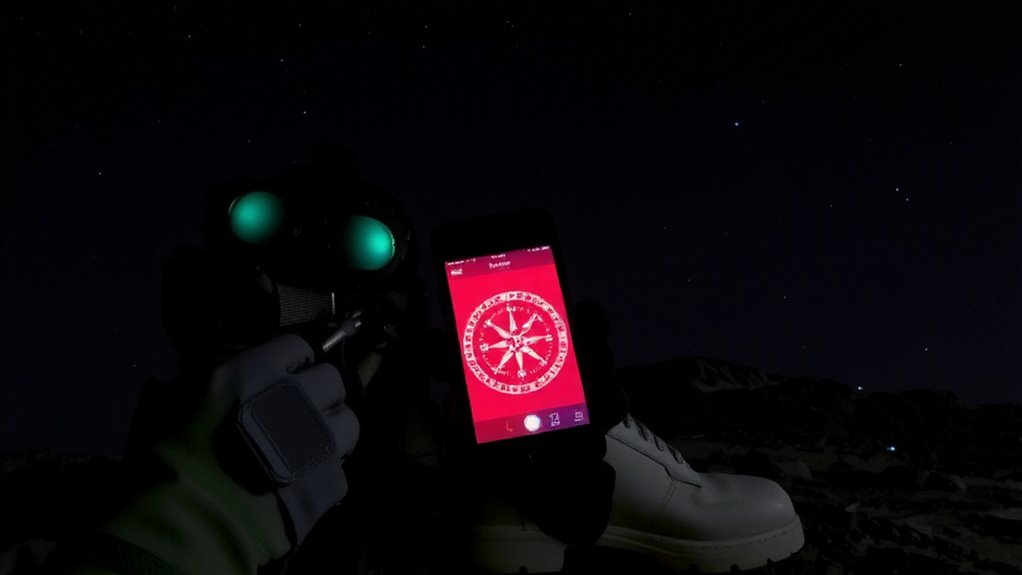
While not all compass apps are compatible with night vision goggles (NVGs), checking for compatibility upfront saves time and avoids frustration in low-light conditions. You need an app that displays in a red or amber mode, minimizing light bleed that disrupts NVG performance. Your phone’s sensor accuracy is critical-poor calibration skews readings, especially when moving fast or in dense terrain. Look for apps that integrate with high-quality magnetometers and offer manual calibration. Magnetic interference from nearby gear, batteries, or vehicle frames can throw off direction, so test the app in your actual field environment. Don’t rely solely on automatic settings; adjust for declination and interference points before deployment. Compatibility isn’t just about display-it’s about maintaining reliable orientation when you can’t afford errors. Test early, test often. For reliable performance, choose from the Top Compass Picks recommended for their accuracy and NVG-friendly features.
Lower Screen Brightness to Preserve Night Vision
You’ll often need to dim your phone’s screen when using a digital compass with night vision goggles, since even moderate brightness can degrade your night adaptation and create glare in the eyepiece. Effective screen dimming is essential-many devices allow brightness control down to 1%, which is ideal. Testing shows that at 5% brightness, most users still experience some pupil constriction, slowing dark adaptation by up to five minutes. Below 2%, glare is minimal and night vision performance remains steady.
| Brightness Level | Night Vision Impact |
|---|---|
| 10% or higher | Significant glare, poor adaptation |
| 5% | Moderate interference, delay in adjustment |
| 1–2% | Minimal impact, recommended for use |
Use manual brightness control instead of auto settings to maintain consistency in low-light conditions.
Switch to Red or Green Night Mode
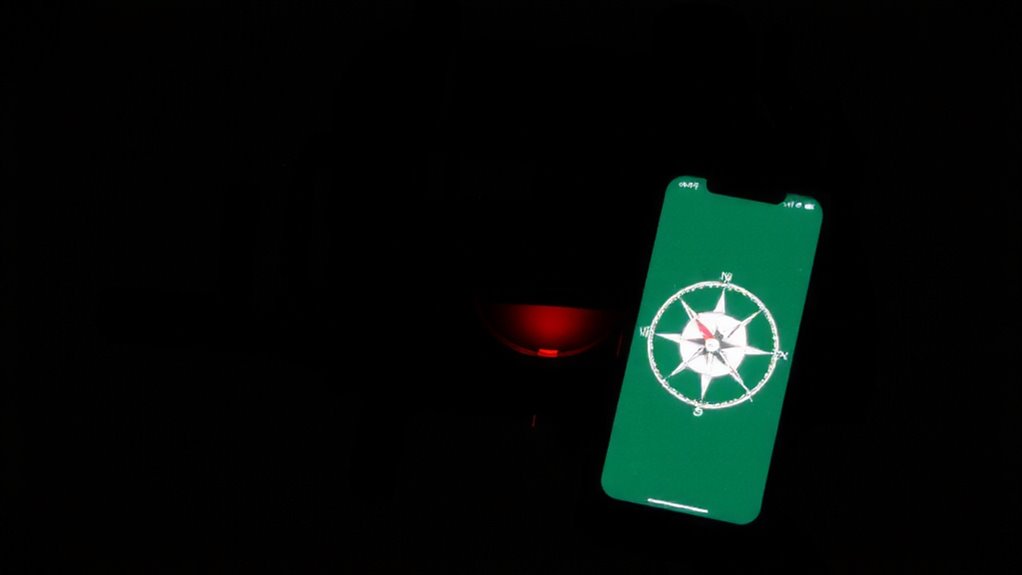
A red or green night mode is standard in most quality compass apps and helps preserve your night vision by reducing blue and white light emissions, which are most disruptive to dark adaptation. You should enable this mode whenever using the app with night vision goggles, as the screen tint minimizes light scatter and maintains your dark-adapted vision. Red is typically preferred for shorter durations, while green offers better color contrast for extended readability. The shift in screen tint doesn’t improve brightness but optimizes visibility under low-light conditions. Most apps allow you to toggle between red and green modes, so test both to see which delivers better clarity with your goggles. This setting works best when paired with low screen brightness. There’s little performance trade-off-just a quick toggle that greatly improves real-world usability in darkness.
Apply Red Filters to Prevent Light Leakage
Red filters are essential when using digital compass apps with night vision goggles because they reduce light leakage that can degrade your night vision and compromise stealth. You need a red transparency that transmits enough light for screen readability while blocking bright white emissions. Most apps support red mode, but without a physical filter, ambient glow still escapes. Apply a dedicated red filter over your device screen to contain leakage. Proper filter alignment guarantees full coverage without gaps or tilting that expose bright edges. Misalignment defeats the purpose, letting unfiltered light through. Choose a durable filter that adheres cleanly and resists peeling during extended use. Test it in total darkness-any visible glow means it’s not doing its job. Filter performance depends on material density and tint consistency. In field use, a correctly applied red filter maintains your night-adjusted vision and lowers detection risk. It’s a small step with measurable impact on operational effectiveness.
Calibrate Your Compass Before Use
Since digital compass apps rely on magnetometer sensors that can drift due to environmental interference or device movement, you’ll want to calibrate before each use to guarantee accuracy. Start by opening the app and following the on-screen motion pattern-usually a figure-eight or circular movement-to reset the sensor. This step clears accumulated magnetic interference from nearby metal objects, power lines, or even your gear. Without calibration, readings can be off by tens of degrees, compromising your geographic alignment. Performing this in the field, away from vehicles or large metal structures, assures more reliable results. It takes 15–30 seconds and directly affects performance under low-light conditions where precise bearings matter. Even minor sensor drift can lead to significant navigation errors over distance. Calibrating regularly is a small step with measurable impact, especially when visibility is limited and you’re relying on accurate headings to move safely.
Fix App and Night Vision Glitches
Ever wonder why your compass app flickers or fails under night vision? It’s usually due to sensor interference or poor app compatibility. Infrared light from night vision gear can confuse your phone’s sensors, leading to inaccurate readings or app crashes. Check that your app supports low-light sensor input and update to the latest version. Some apps handle electromagnetic noise better-test different ones under actual conditions.
| Issue | Feeling |
|---|---|
| App crashes mid-mission | Frustration |
| Wrong heading at critical moment | Danger |
| Compass lags behind movement | Doubt |
| Works perfectly in dark | Confidence |
Disable background apps to reduce interference. Use devices with proven NVG shielding. Not all phones and apps are built for this. Choose based on field performance, not claims. Test in the dark before relying on it.
On a final note
You’ll save time and stay oriented if your compass app works with night vision. Lower brightness to avoid bloom, and use red or green modes-they’re easier on the eyes in darkness. A red filter cuts light leakage. Calibrate the app first for accuracy. Some apps glitch under low light, so test beforehand. It’s not perfect, but it’s reliable when practiced.